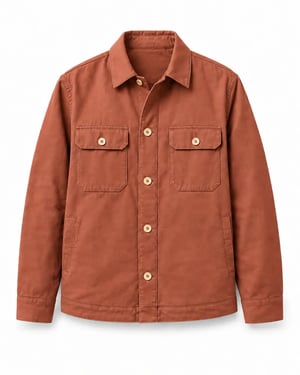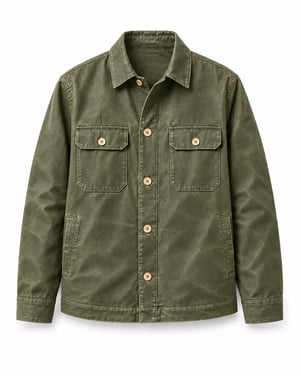
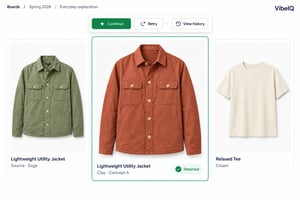
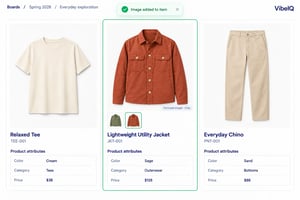
The item card shows the Clay concept image; its attributes still list Sage
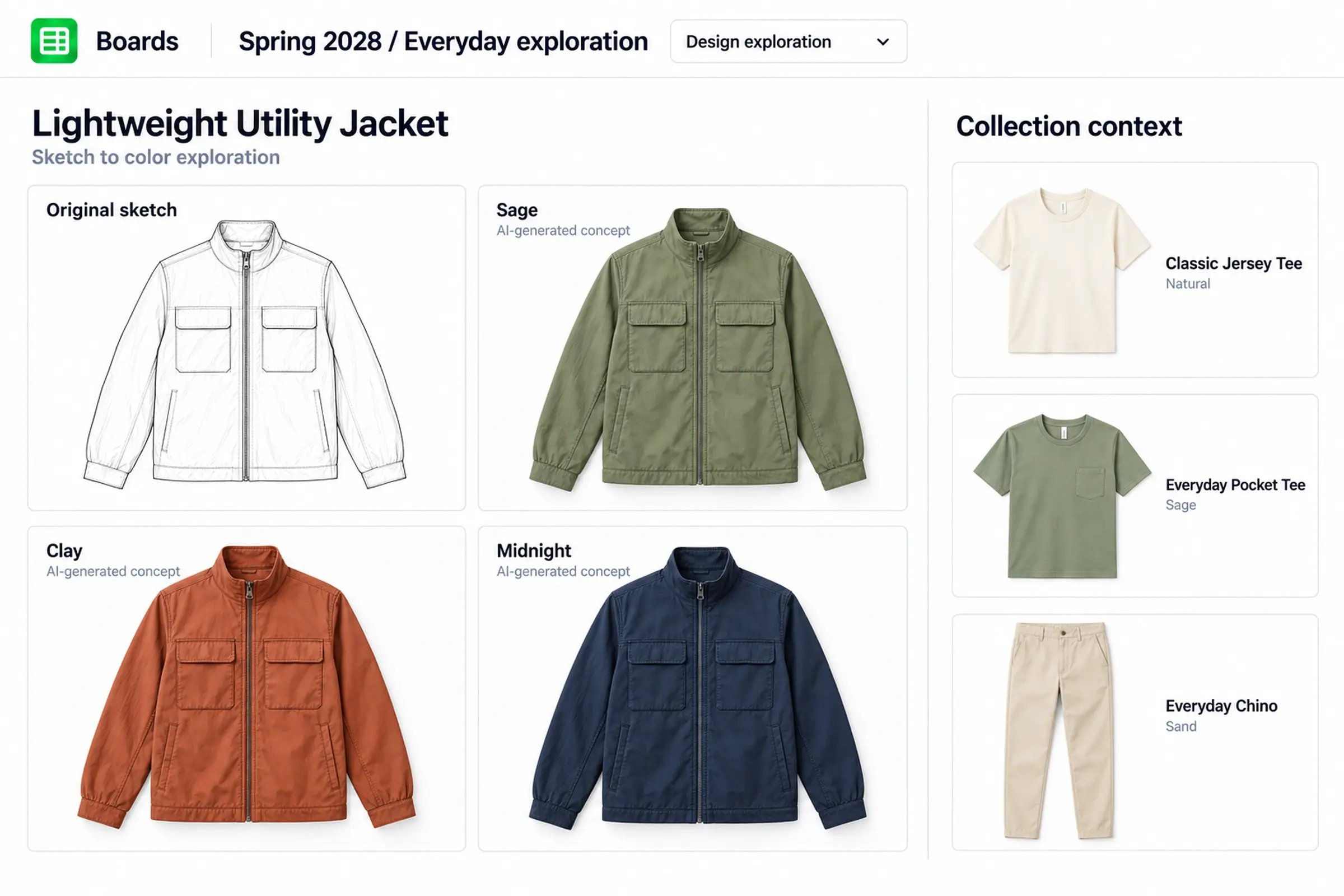
Explore design directions. Keep them with the line.
Turn sketches and product images into visual alternatives, refine selected directions and review them alongside the collection. VibeIQ brings AI image exploration into the workspace where your team builds and reviews the product line.

Start with the design work you already have
Open image generation from a sketch, an image or an item card’s product image. Choose a task, add reference images and select colors from your library or enter a custom color.
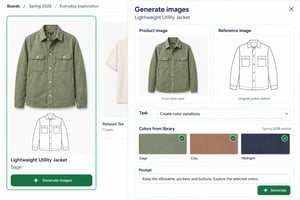
Compare color and material directions visually
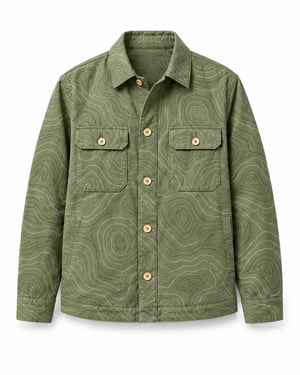
Explore colorways, change the appearance of materials or apply a graphic or repeat print. Generate alternatives, inspect the details and keep the results that help communicate the idea.
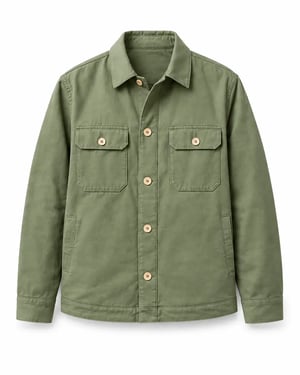


Refine product concepts with every iteration
Continue from selected images, generate new variations, and revisit previous prompts, references, and colors to guide your next iteration.
Retry or refine image generations and choose which results to keep on your Board.
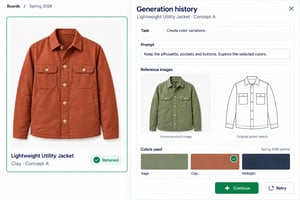
Explore the prompts, references, and colors behind any retained image to guide your next iteration.
Put the selected visual beside the product.
Add chosen concept images to product cards and review them alongside related products on the Board. Generated visuals can explore new directions without automatically changing the product's existing attributes.
Keep your creative tools in the process
VibeIQ adds AI visual exploration where your team builds and reviews the line. Precision work and product development stay with the tools and processes built for them.
Questions about AI product design
The beta supports product concept imagery, sketch visualization, color and material variations, graphics and prints, additional views and on-model visuals. These are generated images for exploration and review.
Yes. Start from a sketch or product image and supply reference images and colors. When you start from an item card, its image is the visual input; this does not mean the AI reads every product attribute.
You can request a focused change and specify what to preserve. Exact preservation is not guaranteed. Inspect the output, retry or refine it, and use specialist editing tools where necessary.
You supply the references, colors and instructions for generation. The surrounding line gives your team context for evaluating results; it should not be assumed to be automatic input to the AI.
No. You can add selected imagery to an item card, but creating and maintaining product attributes is separate. Generated visuals, including technical-flat images, do not establish measurements, fit, construction or production readiness.
AI image generation is in beta and requires access to be enabled for your organization. Contact VibeIQ to discuss availability and the tasks you want to evaluate. Existing customers can speak with their VibeIQ contact.
Standalone tools generate images on their own. In VibeIQ, you can add selected concepts to item cards and review them alongside the rest of the line, so the team can judge which ideas belong in the assortment. The AI does not automatically read your product data; the surrounding line gives your team the context to evaluate results.
No. Generated visuals help teams explore and narrow ideas earlier, which can mean fewer concepts move forward to sampling. Fit, feel, construction and production readiness still require physical samples and technical development.
Bring one design task to the conversation
Tell us what you want to explore, what a usable result needs to look like and where it needs to go next. We’ll use that workflow to guide a VibeIQ walkthrough. No confidential designs are needed for the first conversation.